Troubleshooting
1. I lost my activation code.
You can recover it here or contact us.
2. I have reached the limit of activations.
We understand that Metatrader accounts may expire with time or you may just want to change accounts.
If you ever reach the limit of activations, you can reset activations here or contact us.
3. I can't run it on Mac.
Forex Simulator requires Windows. The only way to run the simulator on Mac or Linux is to use a virtual machine. Remember that you can test if it works for free using the simulator in demo mode.
4. I see error: [You are not connected to MT5 account!]
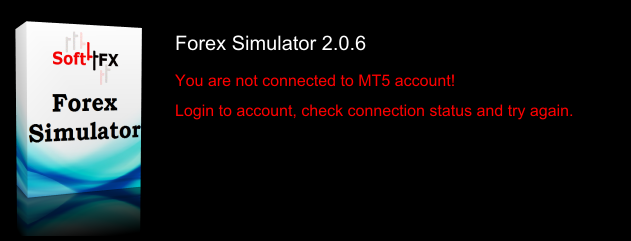
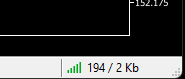
You have to be logged in to broker's account to start the simulator. Please check the connection status in bottom right corner of Metatrader. The status should be green. If it is red, it means that you are not connected.
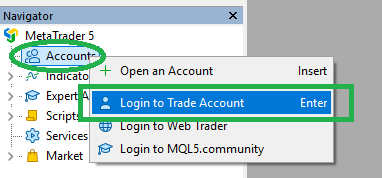
If you have already established an account with a broker, please right-click on Accounts in Navigator window in Metatrader and choose Login to Trade Account. Fill in your account details and password and click OK. Then, check the connection status again and make sure it turns green.
If you do not have an account with any broker, you will have to create at least a demo account. The broker will provide you with login and password which you can use to log in to Metatrader.
5. I see error: [Could not start the simulator!]
You can find more information about the problem on Experts tab in Toolbox window (Ctrl + T or View -> Toolbox). Please send us a screenshot or a photo of this tab and we will try to help (how to take a screenshot).

The problem may be caused by antivirus or other security software that actively blocks Forex Simulator. You can check it quickly by disabling or turning off your antivirus for a short while. When you already know that your antivirus or security software causes the problem, you can try to reconfigure it (e.g. add an exception) to avoid turning it off completely.
6. I have problems with downloading data in Data Center.
- Make sure that you are using the latest version of the simulator. You can download the latest version from our download page.
- Problem may be caused by antivirus or other security software that actively blocks Forex Simulator. You can check it quickly by disabling or turning off your antivirus for a short while. When you already know that your antivirus or security software causes the problem, you can try to reconfigure it (e.g. add an exception) to avoid turning it off completely.
- Sometimes it helps to choose a different folder for storing data. We recommend to choose a simple path, like C:\MyData. This will help when the issue is caused by the lack of access rights.
- You can try to restart your home router if you have it.
- If you own a license for Forex Simulator, you can also download historical data manually.
If you are testing the software in demo mode, the amount of available data will be limited to sample 2 years. It is normal that you won't be able to download more data. Also, it is normal that you won't have the most recent data. Sample 2 years doesn't mean last 2 years.
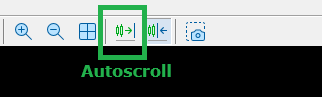
7. I can't scroll the chart backward.
Disable autoscroll in Metatrader's top menu. This will let you scroll the chart backward.
8. I don't see enough history on the chart. It is too short.
If you would like to make the chart longer (see more history), follow these steps:
Step 1
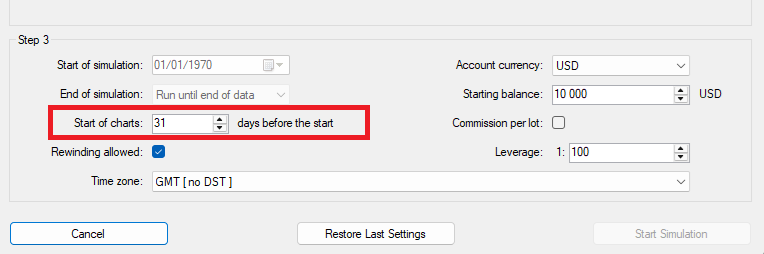
Initially, the visibility of history on charts may be limited by Start of charts setting. Try to increase it. This setting can be adjusted only when starting the simulation.
Step 2
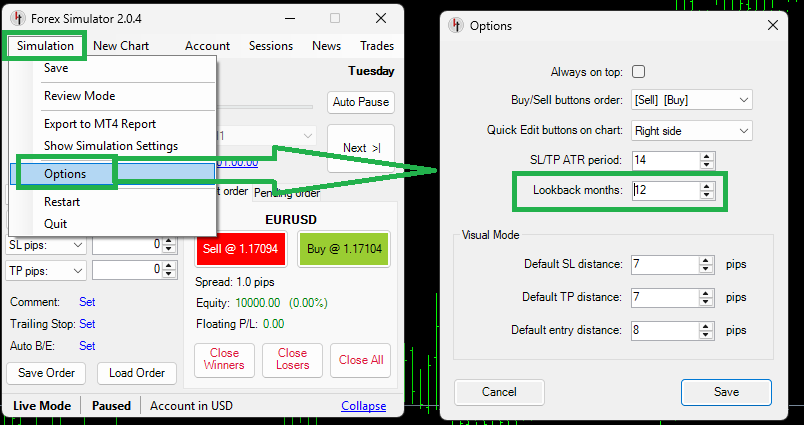
When the simulator is running (working in Live Mode), it will display only a few months of data on charts to save resources and optimise performance. You can extend this period to maximum 12 months in Simulation -> Options -> Lookback months in main menu.
Step 3
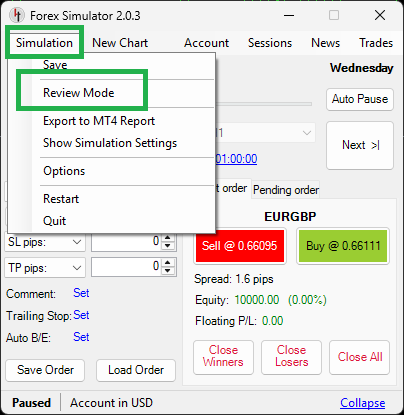
If you would like to see all history, you should go into Review Mode. You can enable and disable it in main menu: Simulation -> Review Mode. More information about Review Mode can be found on this page.
When Review Mode is enabled, the simulator will display this fact in its bottom left corner. Also, the simulation will be paused and all navigation buttons will be disabled. It will not be possible to run the simulation or move forward/backward in Review Mode.
When you decide to finish studying the charts and you would like to continue trading, you can leave Review Mode by going to Simulation -> Review Mode again.
9. I took a few trades, but my profit/loss is always zero and my equity/balance stays unchanged.
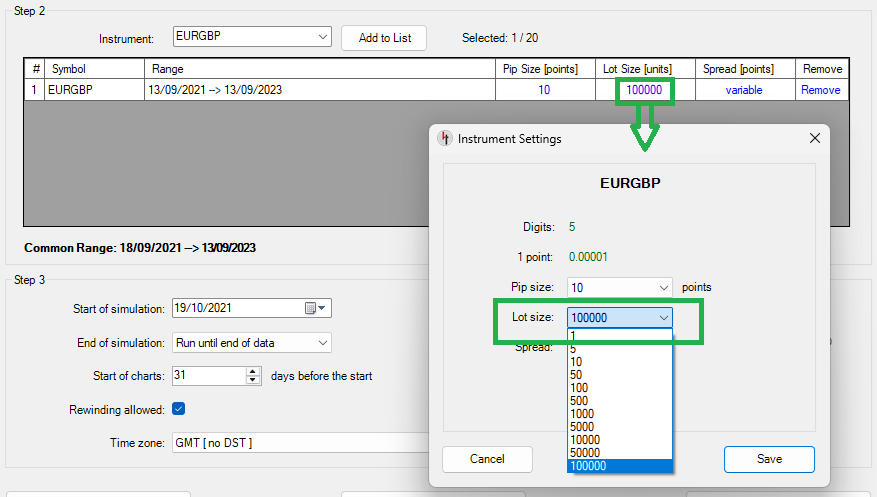
Have you maybe changed Lot Size setting when starting the simulation to a smaller number?
When you reduce the size of one lot, it is possible that your trades will become very very small. In such case their profit/loss will be smaller than 0.01 and it will be rounded down to zero. The standard lot size for currency pairs is 100,000 units. Lot size for other instruments may be different. We recommend to keep default setting unless you know exactly how this setting works.
10. Simulation runs very slowly or even freezes.
There are a few things you can try to fix the problem:
- If you work on a laptop, it is best to connect it to power supply or make sure that power-saving mode is turned off. Laptops can work much slower when they try to save energy.
- Custom indicators are the main reason of slowing down the charts. You can try to add/remove them one by one to see which one is causing the problem. Unfortunately, many custom indicators are not compatible with Forex Simulator and may cause speed issues.
- Check your computer resources in Windows Task Manager (Ctrl + Alt + Del). What is CPU and memory usage when starting the simulator? Which programs/processes eat the most of your memory and CPU time? Is it Forex Simulator, Metatrader or something else? In this way you can identify which program is causing the problem. It may be the simulator, but it may also be something else, for example antivirus scanning the system or Windows update running in background.
11. My custom indicators do not work on Forex Simulator.
Unfortunately, not every custom indicator will work correctly on the simulator. Some will work fine. Some may need small adjustments in the source code. Sometimes they just won't work, no matter what. It is because the environment created in the simulation is a bit different from live environment. Some MQL functions used in custom indicators may not work correctly in the simulation.
That being said, there are a few important notes:
- All standard indicators built into Metatrader will work fine, for example: MA, MACD, RSI, Bollinger Bands, ... .
- Some indicators require certain number of bars on the chart to work correctly. For example, SMA(200) moving average will need at least 200 bars to work. In case of lower timeframes (e.g. M1, M5, M15) this number of bars is usually available by default. However, you may need to adjust simulation settings to obtain this number of bars on higher timeframes (e.g. H4, D1, Weekly). It is explained in question 8.
12. I see error: [Not enough free margin to complete this operation]
Every trade requires some margin. Each time you open a buy or sell trade a portion of money (margin) is blocked for this trade. Margin requirements depend on leverage. It is actually the inverse of leverage. For example, if you set leverage to 1:100, then 1% of the size of trade will be blocked for margin. If you set leverage to 1:10, then 10% will be blocked. The bigger the leverage, the less money you need to take trades.
This error means that you are trying to take a trade which is too big and there is not enough free money in your account to cover its margin requirements. You can try to overcome this problem in the following ways:
- Take smaller trades.
- Close one or more of your existing trades to free up some money.
- Set bigger leverage when starting the simulation.
- Set bigger balance when starting the simulation to have more money in account.