Installation
Requirements
Windows 7/8/10/11
Metatrader 4 with a working account (may be demo or real)
.NET Framework 4.5 or later
How to get Metatrader 4
You can download MT4 directly from MetaQuotes official website.
You can also download it for free from most Forex brokers. All you need is to open a demo account. You may be asked to register on broker's website. A sample list of MT4 brokers can be found below. We are not affiliated with any of them.
Do not worry about demo account expiration. It won't be a problem. You can always reset your activations and move to a new account.
Mac and Linux
The only way to run the simulator on Mac or Linux is to use a virtual machine. Remember that you can test if it works for free using the simulator in demo mode.
.NET Framework 4.5
.NET Framework 4.5 is already pre-installed on Windows 8/10/11. Installation may be required only on Windows 7.
Installation Instructions
Step 1
If you are using Windows 7 , make sure that Microsoft .NET Framework 4.5 is installed on your computer (Check and install). Newer systems should have it pre-installed so this step should not be necessary.
Step 2
Download the latest version of Forex Simulator and save it somewhere on your disk.
Make sure that you know the location of the file on your disk so that you can find it. If you are not sure where your web browser stores the file, you can find it using Ctrl + J shortcut in the browser and choosing Show in Folder or Open Downloads Folder.
EX4 file
The downloaded file has EX4 extension, which is usually not recognized by any application. Do not try to open or start this file, because it will not open. It is perfectly normal.
The icon shown on the file is meaningless. Do not worry when it shows as notepad or pdf. It is only a visual representation shown by your operating system.
Step 3
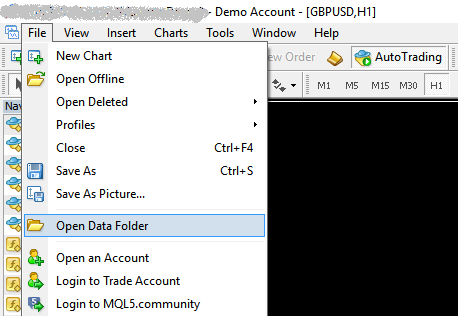
Open your Metatrader 4 and go to File -> Open Data Folder in main menu. A new window should open showing your Data Folder.
Step 4
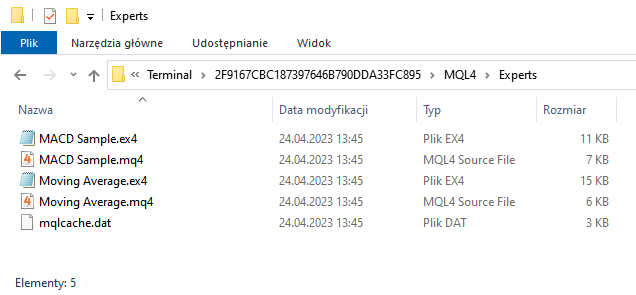
Open MQL4 folder and then go to Experts folder. This will be the target folder for the downloaded file.
Step 5
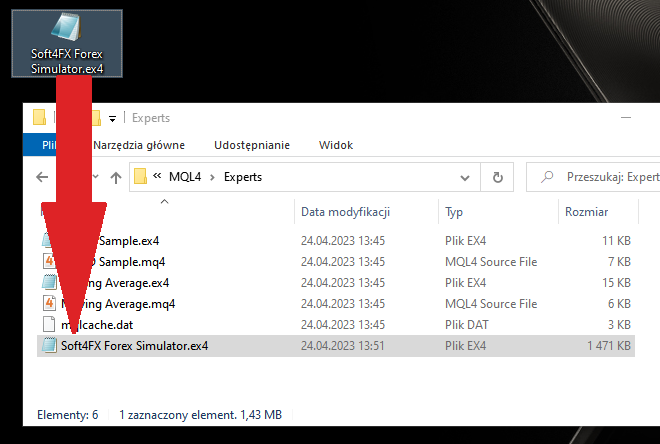
Copy or move the downloaded Soft4FX Forex Simulator.ex4 file into the target folder (MQL4\Experts).
Step 6
Restart Metatrader.
Step 7
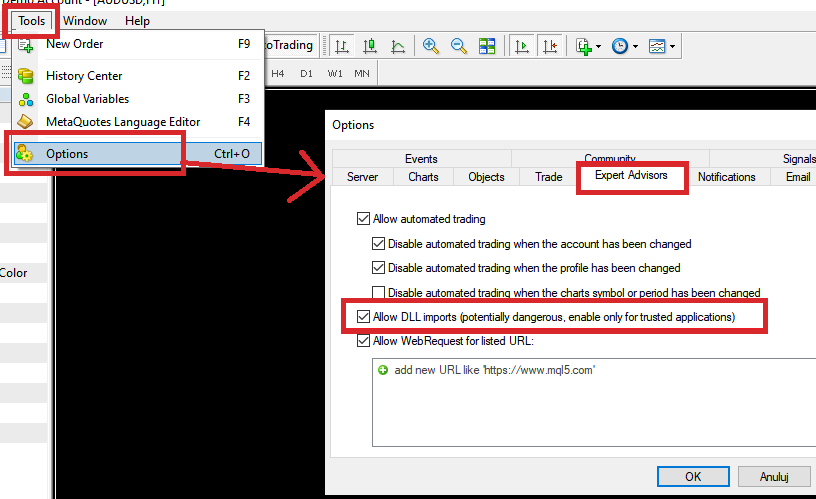
Go to Tools -> Options -> Expert Advisors in Metatrader's main menu and enable Allow DLL imports.
Step 8
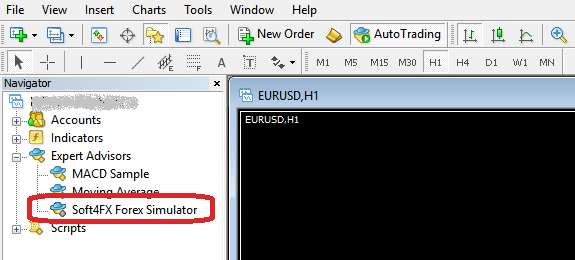
Open the Navigator window in Metatrader (Ctrl + N or View -> Navigator). Soft4FX Forex Simulator should appear on the list of your Expert Advisors in the Navigator window.
Now the installation is finished.
Startup and Activation
Step 1
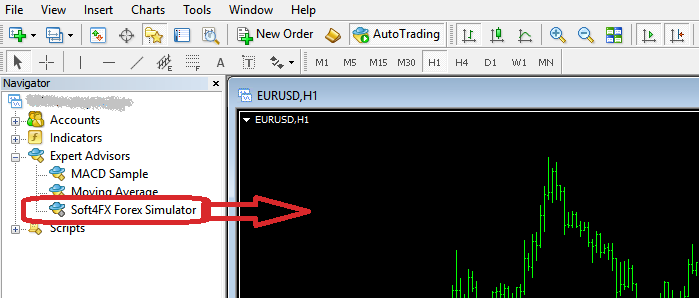
Open a new chart (any instrument and timeframe) and drag Soft4FX Forex Simulator from the Navigator onto this chart.
Forex Simulator will clear the chart by removing all EAs, indicators and graphical objects, so it is always safer to use a new empty chart.
Step 2
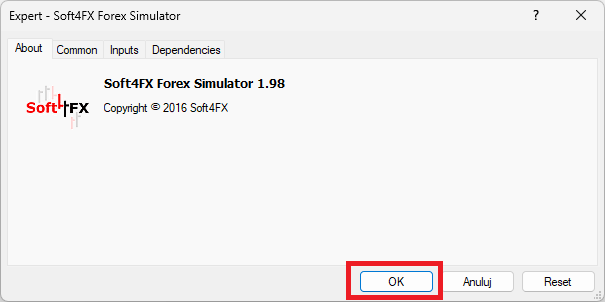
Configuration window will appear. Just click OK.
Step 3
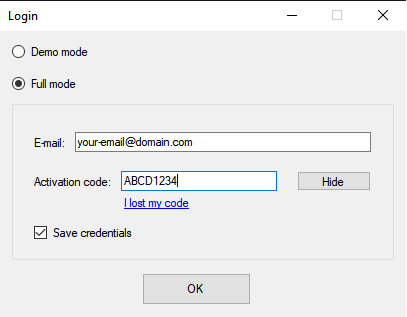
Login window will appear.
- If you would like to try out the software in free demo mode, select Demo mode and click OK.
- If you would like to work in full mode, select Full mode and enter your license details (e-mail and activation code) in the input fields.
- If you have lost the activation code, you can recover it here or contact us.
- Enabling Save credentials will tell the simulator to remember your e-mail and activation code on this Metatrader platform.
Click OK.
Step 4
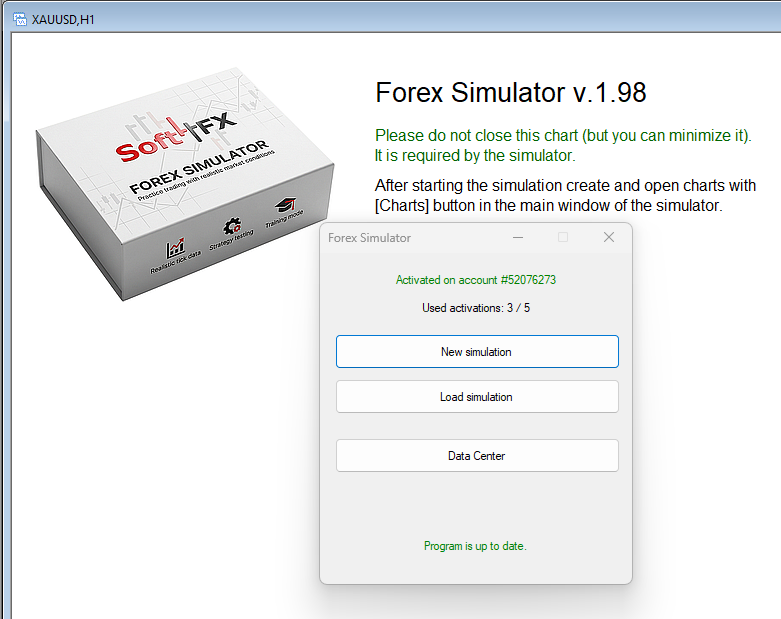
Forex Simulator will verify your license and start. If there are any problems with activating the simulator, a message will be shown.
You are now ready to use the simulator.
Updating to the Latest Version
You can download the latest version of Forex Simulator from our download page and install it according to installation instructions above, which means overwriting existing version.
Updating the software is free of charge.